Key Takeaways
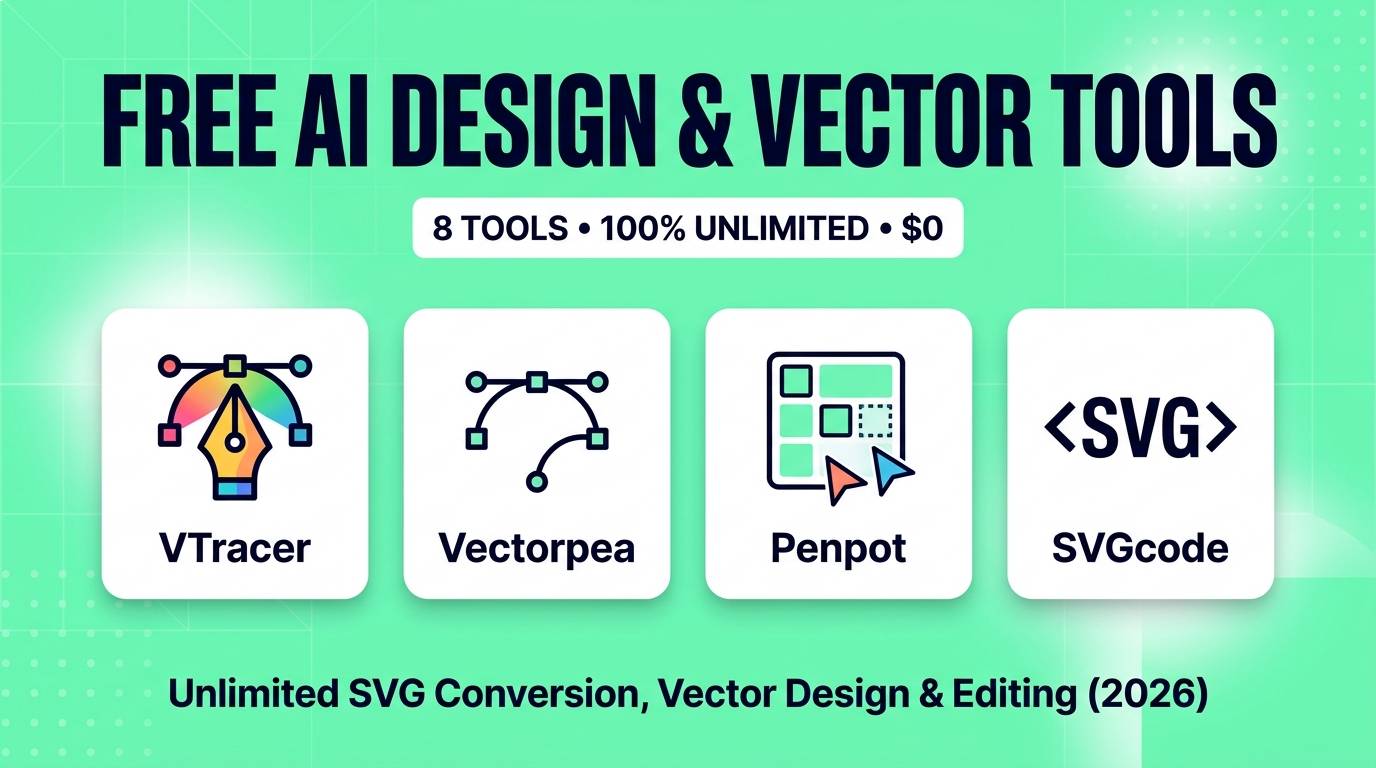
- Zero Credit Limits: Every tool featured here offers truly unrestricted usage — no 3-token daily trial limits, no paywalls on SVG exports, and no forced monthly subscriptions.
- Best Vectorizers: VTracer and SVGcode turn blurry PNGs and sketches into mathematically clean, scalable SVG paths directly inside your browser via WebAssembly.
- Best Illustrator & Figma Replacements: Vectorpea handles native Adobe `.ai` and vector EPS files in-browser for $0, while Penpot provides a 100% open-source collaborative design system.
- AI Generative Workflows: StarVector and Krita + AI Diffusion let you generate native vector paths and perform local generative inpainting without third-party API fees.
If you create graphics for apparel mockups, laser cutting, UI design, print-on-demand, or digital marketing, vector files (SVG, EPS, AI) are your lifeblood. Unlike raster images that turn into a pixelated mess when scaled up, vectors remain infinitely sharp on everything from an Instagram avatar to a billboard.
The problem? The vector software market is plagued by some of the most aggressive paywalls in tech. Vectorizer tools charge $10/month just to convert ten images. Canva locks SVG vector downloads behind Canva Pro ($15/month). And Adobe Illustrator demands a recurring $22.99/month subscription just to open your own files.
Fortunately, the open-source and WebAssembly revolution in 2026 has produced a crop of truly unlimited, free AI design and vector tools. They run in your browser or locally on your hardware, handle complex path simplification, and never ask for a credit card.
Quick Comparison Table
| Tool | Primary Strength | Format Support | How It Runs | Replaces Paid Tool |
|---|---|---|---|---|
| VTracer | AI Raster-to-Vector Conversion | PNG/JPG → SVG | WASM in browser / Local CLI | Vectorizer.ai ($9.99/mo) |
| Vectorpea | Full Vector Path Editing | AI, SVG, EPS, PDF | Browser (Zero Install) | Adobe Illustrator ($22.99/mo) |
| Penpot | Collaborative UI & Vector Design | SVG, JSON, Penpot files | Web / Self-hosted (MIT) | Figma ($15/mo) |
| StarVector | AI Prompt-to-SVG Generation | Text Prompt → Raw SVG | Hugging Face / Local weights | Recraft Vector ($25/mo) |
| SVGcode | Color Segmentation & Tracing | Raster → Optimized SVG | PWA (Browser / Offline) | Vector Magic ($9.95/mo) |
| Polotno Studio | Template & Banner Design | SVG, PNG, PDF | Browser (Zero Sign-up) | Canva Pro ($14.99/mo) |
| Krita + AI | Digital Painting & Generative Paths | KRA, PSD, SVG | Desktop App (GPL v3) | Photoshop + Generative Fill |
| Boxy SVG | Clean SVG Code Inspection | Clean W3C SVG | Web App & Desktop | CorelDRAW / Illustrator |
1. VTracer Web — Best Instant Raster-to-SVG Vectorizer
Most commercial vectorizers claim to use "AI," but in reality, they simply drop thousands of overlapping microscopic polygons over your image. The result? A massive 25MB SVG file that crashes Adobe Illustrator and bogs down web browsers. VTracer takes a completely different path.
Engineered in Rust, VTracer performs intelligent edge filtering and hierarchical clustering. It fits smooth cubic Bézier curves through points rather than raw polygons, producing lightweight, scalable SVG artwork with up to 80% fewer path nodes than standard Potrace algorithms.
Because the web interface compiles the Rust engine directly to WebAssembly (WASM), everything computes on your machine's CPU. You can vectorize 50 logos in a row without hitting credit limits, waiting on server queues, or uploading your client's private intellectual property to third-party servers.
VTracer Scores
2. Vectorpea — Best Free Browser-Based Illustrator Alternative
If you have ever needed to make a quick tweak to an Adobe Illustrator `.ai` file on a computer without an Adobe license, you know how frustrating it is. Vectorpea (vectorpea.com), created by Ivan Kutskir, does for vector illustration what Photopea did for photo editing.
You navigate to the website, drag in any `.ai`, `.eps`, `.pdf`, or `.svg` file, and instantly get a full desktop-class vector workstation: Pen tool with Bézier handles, pathfinder boolean operations (union, subtract, intersect), typography controls, gradient meshes, and layer grouping. No installation, no account creation, and completely unrestricted exports.
For creators on Chromebooks, secondary laptops, or budget setups, Vectorpea eliminates the need to pirate old copies of Illustrator or pay $275/year just to adjust vector anchor points.
Vectorpea Scores
3. Penpot 2.0 — Best Open-Source Figma & Design System
When Adobe attempted to acquire Figma for $20 billion, thousands of designers asked themselves: "Why are all my team's vector assets locked into a proprietary closed format?" Penpot was built to solve that vulnerability.
Unlike Figma, which uses a proprietary internal rendering engine, Penpot renders graphics using native web standards (SVG, CSS Grid, and Flexbox). When you draw a vector shape, define a component, or set up a typography hierarchy in Penpot, what you see on the screen is mathematically identical to what renders in a web browser.
With its modern 2.0 release, Penpot includes powerful component libraries, design tokens, interactive prototyping, and community AI plugins. You can use their free cloud tier or self-host it via Docker for 100% offline data sovereignty with your team.
Penpot Scores
4. StarVector — Best Open-Weight Text-to-SVG AI Model
Most "AI vector generators" on the internet are actually running standard image diffusion models (like Midjourney or Flux) and then quietly running a raster tracer over the output. The resulting files are often messy, with thousands of weird little jagged fragments.
StarVector is fundamentally different: it is an open-weight model trained directly on SVG code token streams. When you type: "Minimalist flat vector icon of an espresso coffee cup with steam, solid fills, clean geometric circles," StarVector generates the actual SVG markup with semantic layer tags, proper colors, and grouped paths.
You can test and run StarVector through free public Hugging Face spaces or deploy the weights locally. Because the output is native vector code, you can immediately paste it into Vectorpea, Penpot, or VS Code and edit every single curve handle individually.
StarVector Scores
5. SVGcode — Best Progressive Web App Vectorizer
Built as an official Google Chrome web capabilities demonstration, SVGcode proves just how capable in-browser vector tools have become. It wraps the powerful Potrace vectorization engine inside an intuitive, modern visual interface.
What makes SVGcode indispensable for apparel and vinyl decal creators is its color segmentation slider. When you drop in a colorful cartoon illustration or sticker, SVGcode breaks the artwork down into discrete color layers. You can merge adjacent colors, smooth out noisy scan speckles, and preview the live SVG wireframe side-by-side with your original file.
Because it is a Progressive Web App, you can click "Install" in your browser bar and use it as an offline desktop utility on Mac, Windows, or Chromebook without needing an active internet connection.
SVGcode Scores
6. Polotno Studio — Best Zero-Login Canva Alternative
Canva is fantastic until you need a quick social media graphic or product announcement and spend 10 minutes dodging premium template upsells and watermark warnings. Polotno Studio strips away all that corporate baggage.
You open the site, select your canvas dimensions (or choose from common presets like Instagram, YouTube Banner, or Etsy banner), and start designing. It includes built-in search integrations for royalty-free photography (Unsplash), millions of open-source vector icons, typographic combinations, and shapes.
When you finish your design, clicking "Download" immediately gives you full-resolution PNGs, JPEGs, or crisp PDF files without asking for your email or payment details.
Polotno Scores
7. Krita + AI Diffusion — Best Local AI Vector & Canvas Studio
Many creators assume that Krita is solely for digital painters, but Krita actually features a robust vector graphics engine with dedicated vector layers, text tools, and boolean shape modifiers. When you install the popular, free AI Diffusion plugin (by Acly), Krita turns into an unlimited generative powerhouse.
You can draw rough vector silhouettes or placeholder shapes on a vector layer, and use the local AI model (powered by your own GPU or local ComfyUI) to generate high-fidelity textures, characters, or landscapes that adhere strictly to your vector contours. You can upscale, refine, and convert parts of the generated art back into vector curves for merchandise printing without paying a monthly subscription.
Krita + AI Scores
8. Boxy SVG — Best Modern Lightweight SVG Editor
Traditional vector programs like Inkscape or Illustrator fill your SVG files with hundreds of lines of proprietary metadata, unnecessary namespace tags, and bloated XML. Boxy SVG takes the opposite approach: it treats the SVG DOM as its source of truth.
The free web app features an uncluttered interface focusing on essential vector operations: direct path geometry manipulation, gradient generators, drop shadows, and CSS styling. When you export an icon or illustration from Boxy SVG, you get clean, human-readable code that you can paste directly into HTML or Tailwind templates without needing an SVG cleanup tool.
Boxy SVG Scores
Pro Workflow: Turning Any Blurry AI Art into Production Vectors
Here is a battle-tested workflow used by print-on-demand creators and logo designers to create commercial-grade vector assets for free:
The Zero-Cost Vector Pipeline:
1. Generate or Source: Generate your concept graphic or sticker idea using an open image generator or StarVector.
2. Remove the Background: Drop the image into RMBG 2.0 Web to get a crisp, transparent cutout PNG in 2 seconds.
3. Trace to Vector: Load the clean PNG into VTracer. Keep the "Filter Speckle" around 4 and set "Corner Threshold" to smooth.
4. Edit & Perfect: Open the resulting SVG in Vectorpea to delete unwanted path artifacts, recolor elements, and export a master `.ai` or `.svg` file ready for screen printing or web deployment.
Which Tool Should You Use?
Recommendations by Use Case
- You need to convert a JPG/PNG logo into a scalable SVG: Use VTracer (for speed and smooth curves) or SVGcode (for multi-color vinyl layering).
- You need to edit Adobe Illustrator files without paying Adobe: Open Vectorpea in your browser immediately.
- You are designing UI components and web layouts with a team: Use Penpot for native SVG rendering and zero subscription lock-in.
- You need quick marketing banners without Canva's paywalls: Use Polotno Studio.
- You want AI to write native vector paths from prompts: Try StarVector.
Frequently Asked Questions
Can I use files generated by these free vector tools for commercial t-shirts and client logos?
Yes. All outputs generated by VTracer, Vectorpea, Penpot, and SVGcode belong 100% to you. There are no licensing restrictions, royalties, or commercial paywalls on exported SVG and AI files.
Why do some AI vectorizers produce massive SVG files that freeze Illustrator?
Many basic tools use polygon triangulation instead of true Bézier curve fitting, generating hundreds of thousands of tiny nodes. Modern tools like VTracer use curve-fitting algorithms that represent edges with smooth mathematical curves, keeping file sizes small and node counts low.
Can Vectorpea really open complex Adobe Illustrator (.AI) files?
Yes. Vectorpea parses standard Adobe Illustrator files, preserving artboards, paths, layer hierarchies, and text elements without requiring an active Creative Cloud subscription.
Is Penpot a viable replacement for Figma in 2026?
For UI design, prototyping, and design systems, yes. Penpot 2.0 uses CSS Grid and Flexbox standards with native SVG rendering, making handoff to developers faster and cleaner while offering self-hosting options.
You do not need to spend hundreds of dollars a year on subscription software just to create, trace, and edit vector graphics. Bookmark these free tools, integrate them into your design workflow, and enjoy truly unlimited vector creativity in 2026.
Looking for more free creative tools? Browse our complete AI tools directory for hundreds of tested and ranked applications across every category.